Digital Terminal Shell Clock
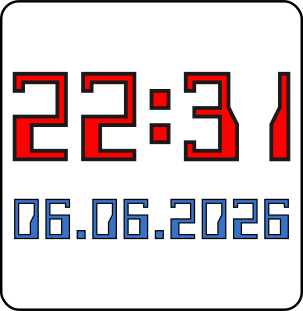
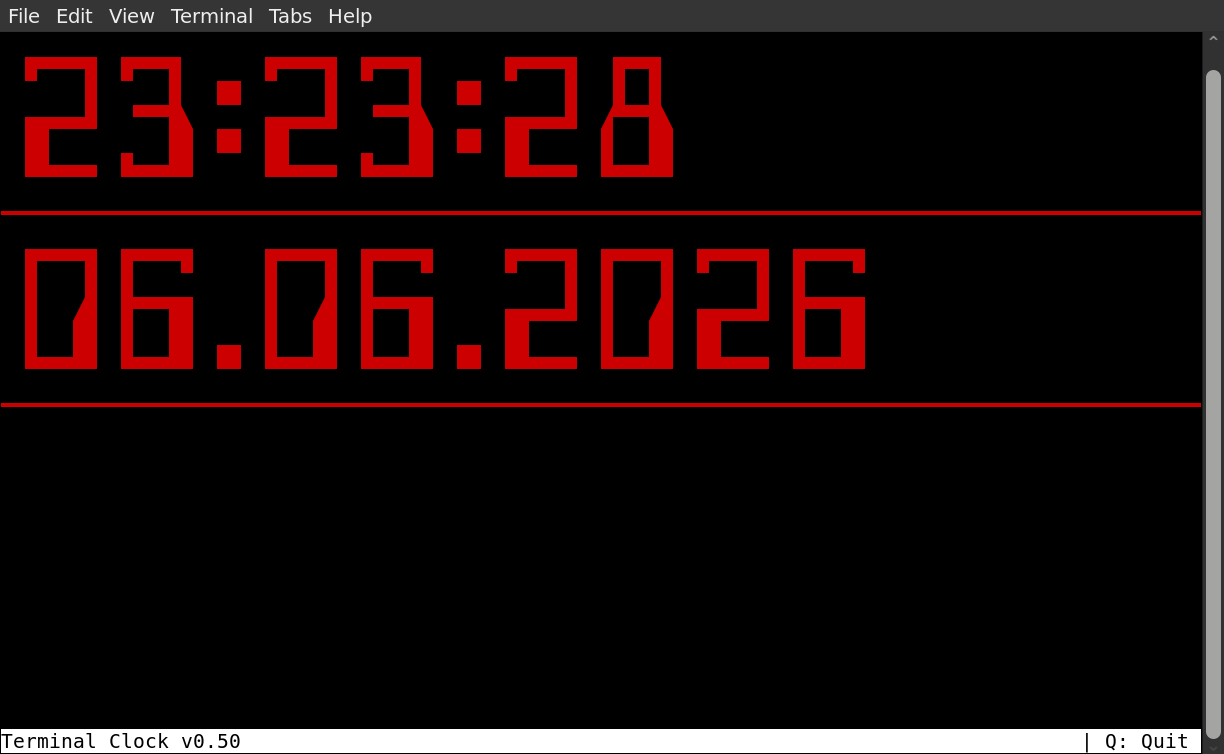
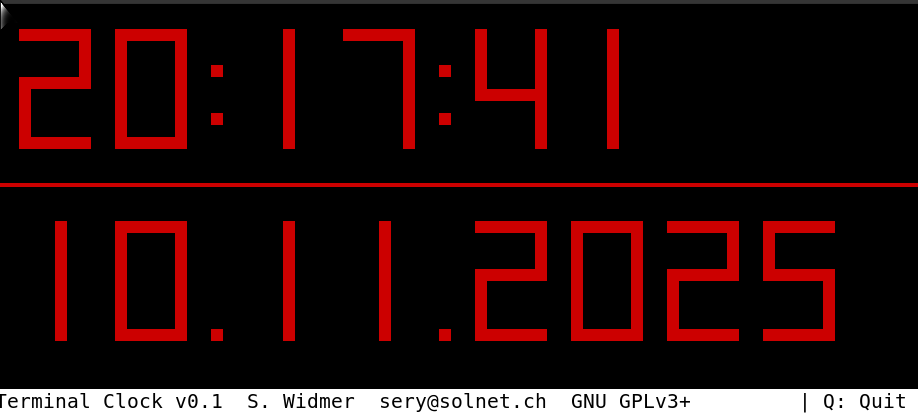
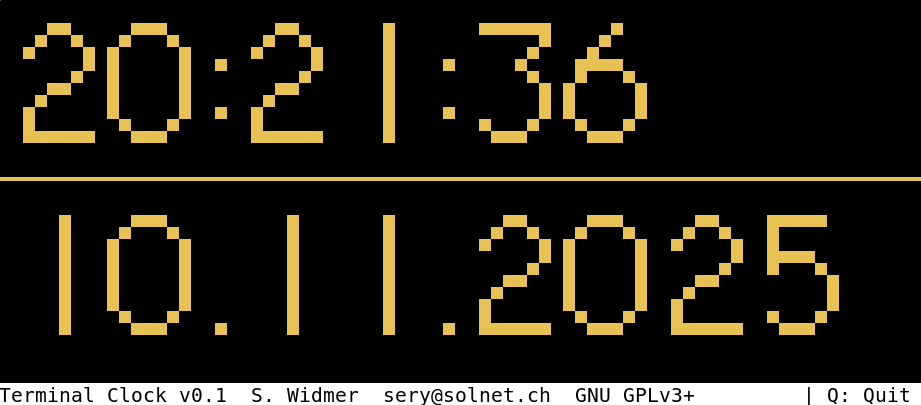
Screenshots
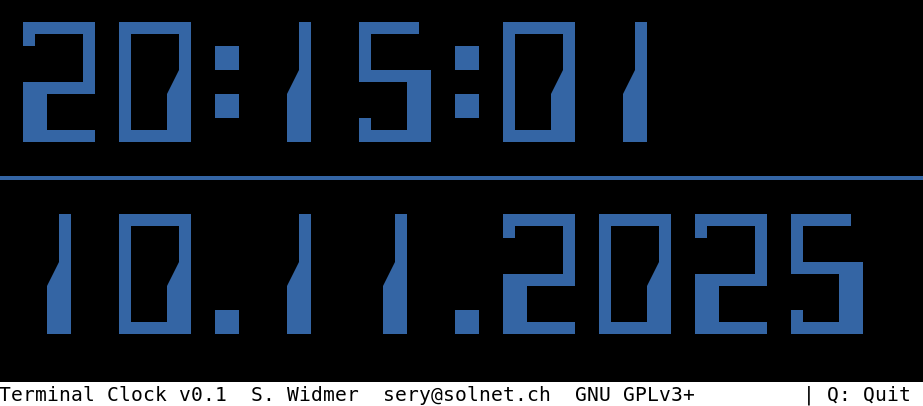
ⓘ Preface
I am coding this clock just out of fun and because I admire beautiful and funny clocks. Instead of searching and downloading an old terminal-clock, I decided to rather create my own one and include the date as well.
Programming such a clock with the Unicode character set using bash script is almost like programming with BASIC on my beloved CBM 8032 or C64 back in the day. Pure, raw and sometimes spaghetti code. Ah, those were the days!
This is also proof that a fully functional program can be created with a Bash script. The advantages are obvious: a minimal installation of Linux is sufficient without having to use a bloated programming language.
💡 Description
Measured on several platforms, the CPU-Load should remain below 2% – but mostly even below 1%.
Note that the label «SWISS MADE» of this clock is correct indeed – I am living in the «clock-country» Switzerland and try to continue the art of designing clocks. It is just that this one is made out of pure software
🞋 Installation and Dependencies
Linux
As this is a bash script, it is not needed to be installed. Copy it to wherever you like. However, there are a few dependencies:
bash: It is a fundamental and almost universally pre-installed package on nearly all Linux distributions. Usesudo apt install bashif not installed.tput: The tput command is part of the ncurses-bin package (at least in Debian). Usesudo apt install ncurses-binif not installed.date: In Debian and almost all other Linux distributions, the date executable (usually found at /bin/date or /usr/bin/date) is part of the coreutils package.
After all, if you feel unsure wether you have to install those mentioned packages, most probably you don’t.
Windows
Due to the lack of a native Bash Shell, you can install GIT Bash for Windows that is intended for GIT usage and is emulating the Bash only. The clock.bash script will run nevertheless.
❌ Restrictions in general
-
Depending on the font and terminal shell, not all characters (Unicode!) may be displayed correctly or might look pretty.
-
Especially the Unicode triangle chars like
◢might not be displayed correctly and might be shifted or too small in size. As terminal-font, I have tested sucessfully withMonospace Regular 9. As for the Terminal-Shell, I’ve tested with xfce4-terminal and kitty, native linux console and xterm so far. -
Not every terminal shell is capable of RGB colors although most do nowadays. If using a historic one, it might be a good idea to use one of the 16 specified colors.
⚙ Options
⏰ Alarm
This option is used to set up an alarm time in HH:MM. E.g.: ./clock.bash --alarm=16:45 If the alarm
time is equal to the actual time, clock.bash is terminating and the following output is showed:
  ██████  ██     ██████  ██████  ██████████  ██
  ██  ██  ██     ██  ██  ██  ██  ██  ██  ██  ██
  ██████  ██     ██████  ██████  ██  ██  ██  ██
  ██  ██  ██     ██  ██  ██ ██   ██  ██  ██
  ██  ██  █████  ██  ██  ██  ██  ██  ██  ██  ██
Advantage: You can set up a command-chain as the following example is showing:
./clock.bash && aplay /path/to/some/music/alarm.mp3This will teminate the clock at the given time and then play an mp3 file.
Restrictions:
- There is no way to set seconds as well (HH:MM:SS). Is this useful?
- There is no way to set a specific date. I am assuming that it is not needed. Or is it?
- There is no way to set a specific action as executing another program by now. Would you have use of it?
- Finally: There is no way to set or apply a specific style for the outputted text “ALARM !”
Let me know what you think, and I’ll consider whether and how this can be implemented as simply as possible.
⏲ Countdown
This option is defining a countdown time in the format hh:mm:ss E.g.: ./clock.bash
--countdown=03:00:00
If the countdown is zero, it will result in the following output and returning to the terminal shell.
  ██████  ██  ██████████  ██████    ██  ██████    ██  ██  ██████  ██
    ██    ██  ██  ██  ██  ██        ██  ██        ██  ██  ██  ██  ██
    ██    ██  ██  ██  ██  ████      ██  ██████    ██  ██  ██████  ██
    ██    ██  ██  ██  ██  ██        ██      ██    ██  ██  ██
    ██    ██  ██  ██  ██  ██████    ██  ██████    ██████  ██      ██
⏱ Stopwatch
This option is used to trigger a stopwatch. Usage: clock.bash --stopwatch=start
If you quit clock.bash by pressing the key q and while the stopwatch is running, the last time is
saved before returning back to the terminal shell.
Example of output:
  ██████  ██████      ██████  ██████      ██████  ██████
      ██      ██  ██      ██      ██  ██      ██      ██
  ██████  ██████      ██████  ██████      ██████  ██████
  ██          ██  ██      ██  ██      ██      ██  ██
  ██████  ██████      ██████  ██████      ██████  ██████

━━━━━━━━━━━━━━━━━━━━━━━━━━━━━━━━━━━━━━━━━━━━━━━━━━━━━━━━━━━━━━━━━━━━━━━━━━━━━━━━━━━━━━━━━━━━━━━━━━━━

      ██  ██████          ██      ██      ██████  ██████  ██████  ██████
      ██  ██  ██          ██      ██          ██  ██  ██      ██  ██
      ██  ██████          ██      ██      ██████  ██  ██  ██████  ██████
      ██  ██  ██          ██      ██      ██      ██  ██  ██          ██
      ██  ██████  ██      ██      ██  ██  ██████  ██████  ██████  ██████

━━━━━━━━━━━━━━━━━━━━━━━━━━━━━━━━━━━━━━━━━━━━━━━━━━━━━━━━━━━━━━━━━━━━━━━━━━━━━━━━━━━━━━━━━━━━━━━━━━━━

  ██████  ██████          ██  ██████      ██████      ██
  ██  ██  ██  ██  ██      ██  ██  ██  ██  ██  ██      ██
  ██  ██  ██████          ██  ██  ██      ██  ██      ██
  ██  ██  ██  ██  ██      ██  ██  ██  ██  ██  ██      ██
  ██████  ██████          ██  ██████      ██████      ██
Statusbar
- If the option is set to
--statusbar=1or--statusbar=on, the statusbar is shown on the bottom of the terminal shell. - If the option is set to
--statusbar=0or--statusbar=off, the statusbar is hidden.
☀ Styles
To give your clock a different look or font, you can choose one specific style based on an era.
Usage:
./clock.bash --style=50     # run clock using a style from the 50ies
./clock.bash --style=E-13B  # same as --style=50 using alias
Available styles:
50 or E-13B
- Visual: MICR / bank-check style — blocky, machine-readable digits. This style is close looking to E-13B font that was used for Magnetic ink character recognition code, known in short as MICR code. It was introduced in 1958.
- Purpose: High-contrast, rigid digit shapes.
- Good for: Retro industrial / MICR look; terminals rendering box characters well.
51 or E-13B-simple
- Visual: Simplified block-only variant of E-13B.
- Purpose: Same style with fewer decorative glyphs for better compatibility.
- Good for: Terminals with limited Unicode/box-drawing support.
55 or NIXIE
- Visual: Nixie‑tube inspired glyphs with rounded/segment-like shapes.
- Purpose: Emulate vintage nixie tube numerals.
- Good for: Retro-electronic, steampunk or museum-like displays.
60 or OCR-A
- Visual: OCR‑A (Optical Caracter Recognition) inspired segmented glyphs with distinctive gaps. This style is almost identical to OCR-A. OCR-A is a font issued in 1966 and first implemented in 1968. A dedicated font was needed in the early days of computer optical character recognition, when there was a need for a font that could be recognized not only by the computers of that day, but also by humans.
- Purpose: Readable “machine/early-computer” aesthetic.
- Good for: Classic OCR look where digits are clearly
61 or OCR-A-SIMPLE
- Visual: Block-only simplification of OCR‑A.
- Purpose: Better terminal compatibility while keeping OCR feel.
- Good for: Terminals with limited Unicode/box-drawing support.
70 or DATA-70
- Visual: Futuristic, angular glyphs strongly inspired by Data 70. It is intended to look like a space-age-clock. Data 70 was the rival to the also famous Westminster font.
- Purpose: Retro-futuristic / space‑age display.
- Good for: Sci‑fi themed terminals and old-console styling.
71 or DATA-70-SIMPLE
- Visual: Simplified Data‑70 blocks.
- Purpose: Same theme with increased compatibility.
- Good for: Terminals with limited Unicode/box-drawing support.
72 or 7-SEGMENT
- Visual: Seven-segment display emulation.
- Purpose: Classic digital clock/readout appearance.
- Good for: Minimal, highly legible numeric output.
73 or 7-SEGMENT-THIN
- Visual: thin Seven-segment display emulation.
- Purpose: Classic digital clock/readout appearance.
- Good for: Minimal, highly legible numeric output
74 or 7-SEGMENT-ROUNDED
78 or VT100
- Visual: VT100 emulation.
- Purpose: Classic terminal appearance.
- Good for: Minimal, highly readable output.
80 or default
- Visual: Large broad block characters; default layout.
- Purpose: Balanced option intended to render well in most terminals.
- Good for: Most users — recommended when unsure.
83 or VT220
- Visual: VT220 emulation.
- Purpose: Classic terminal appearance.
- Good for: Minimal, highly readable output.
84 or numbers
- Visual: Numbers as numbers
- Purpose: For all terminals
- Good for: fun
85 or hashes
- Visual: Hashes as numbers
- Purpose: For all terminals
- Good for: fun
87 or VT320
- Visual: VT320 emulation.
- Purpose: Classic terminal appearance.
- Good for: terminal shells with more than 83 chars in width
90 or MODERN
- Visual: Contemporary, cleaner glyphs / modernized styling. My own creation finally.
- Purpose: A modern alternative to the retro sets.
- Good for: users preferring a sleeker look.
Color
- Use
--color=<color>to set the display color (default: red). - Supported formats:
- Colornames:
blackcyanyellowbrightyellowbright_greenbluebright_magentabright_blueredbright_whitebright_blackbright_redbright_cyanwhitegreen magenta
- Numeric:
00..15 - ANSI codes:
30..37and90..97 - Hex:
#RRGGBB - RGB triplet R,G,B (
0..255)
- Colornames:
Restrictions
There might be many useful functions missing. Let me know of the ones you like to have implemented.
No programming languages included or other programs in comparison of real RPN calculators.
ℹ Help
✍ Feature requests?
For any kind of feature you would like to see or bug reporting or thank you’s:
Take care! Simon